| Home Page
Game Reviews
About Page
Windows XP Poll
Processors
Motherboards
Memory
Video Cards
Monitors
Hard Drives
Floppy Drives
Modems
BIOS
Networking
|
|
Info
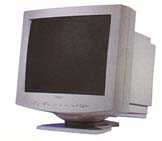
Monitors choices are important because of their impact on the usability of your PC. An inferior quality monitor can hinder the perormance of an otherwise high tech PC. It is possible to spend as much on your monitor as you do on the computer itself.
Monitors are a pretty straightforward piece of hardware. Nevertheless, there are things to know, especially when considering a new monitor. Read through the articles below, and I think you'll have a a good grasp of the basics.
|
|
|
Dot Pitch, Resolution, and Refresh Rate
The three most common things about monitors that are looked at when you are considering which to buy are dot pitch, resolution, and the refresh rate.
Dot Pitch
The dot pitch is a measurement of how close together the pixels, or phosphor dots, are that make up an image. For the most part, the finer the dot pitch, the better image quality you will have. But, the subject of dot pitch is actually a little confusing. No longer can one just assume that the smaller dot pitch is better.
The dot pitch is dependent on the type of monitor. The traditional dot pitch on a shadow-mask monitor is measured diagonally from one phosphor dot to the next of the same color. The horizontal dot pitch is, then, the distance from an imaginary line drawn through all same-color phosphor dots in a vertical column to the next over such line. Both of these monitors use the same construction, but the dot pitch is measured differently, and can't be compared. On aperture-grill monitors, such as the Sony Trinitron, a stripe pitch is used, and is the distance between two same-color stripes in the display. Here, a 0.25 dp is standard, while 0.28 dp is standard on a shadow-mask monitor. They can't be compared, then, by dot pitch alone.
The motto here is not to pay too much attention to dot pitch when considering your next monitor.
Resolution and Refresh Rate
These two features are discussed together because neither can really be discussed alone. Each depends on the other. They work hand-in-hand to produce a clean image, and they both depend on the bandwidth available from your video card.
Refresh rate is the vertical frequency, or the rate at which each pixel on a screen is re-drawn. A low refresh rate result in an image that flickers, resulting in eye-strain. Due to limits in bandwidth, the rate at which the screen is redrawn decreases as the resolution increases. Bandwidth is the rate at which the monitor receives data from the video card. To find out how much bandwidth is needed at a particular setting, simply multiply the horizontal resolution by the vertical resolution by the refresh rate. For example, a refresh rate of 85Hz at 800x600 resolution would require 40.8 MHz bandwidth. According to this, you can see that as the resolution increases, the required bandwidth increases dramatically.
The standard for flicker free images has been set to 85Hz. Nevertheless, most viewers won't detect flicker as low as 72 Hz. The best test to detect flicker is to look slightly above or to the side of the monitor. Your peripheral vision is more sensitive to the flicker, therefore you have a better chance of seeing it. Sometimes, it helps to be in a darker room.
Your video card plays an important role in all of this. If your card cannot provide support for the resolutions and refresh rates of the monitor, the picture will look degraded. When pairing a video card with a monitor, at least make sure that it is capable of delivering a 72Hz refresh rate at any resolution supported by that monitor.
|
|
|
|
| |
How They Work
Under the covers, an electron beam is aimed at a phosphor-coated screen. Whenever the electrons hit the phosphor, it glows, producing images. When the monitor is plugged into the video card, it gets a scan frequency, or a signal telling the timing of the screen redraws. The electron beam must cross the screen in synchronization with the card's scan signal. The beam starts at the top left of the screen, crossing it from left to right. As it does this, it excites the phosphor dots. As it reaches the right side of the screen, it returns to the left side in order to refresh the line of pixels underneath the first one. It continues this process down the screen, returning to the top to do it over when it has finished the entire screen. During the passes, the beam excites those phosphor dots which the video card tells it to. Therefore, the card gives precise instructions to the electron gun to excite that pixel or another one, thereby forming some kind of pretty picture.
On a color monitor, this remains true, with one added feature. Each pixel contains three separate dots, one for each of the primary colors of light: red, yellow, and blue. Combining these colors together produces the range of colors that we all know.
An RGB monitor is the oldest kind of color monitor, and the lamest. RGB monitors have bad quality and the pixels are huge. Nevertheless, each pixel has the three primary colors. The electron beam to the pixels operates under a simple on/off signal, therefore only subtle shades of color are possible. RGB screens can only produce 16 colors. They work with a 9-pin connector and are compatible with the CGA video card.
An EGA monitor works with a 9-pin connector and the EGA video card. They boast better resolution than the RGB monitor. Also, they offer two brightness levels for each primary color dot, therefore offering a wider range of colors. EGA screens can show 64 different colors.
VGA monitors use a 15-pin connector, setting them apart from RGB and EGA. These monitors boast an analog signal which can be adjusted anywhere in a certain voltage range. As RGB and EGA screens use an on/off signal, the VGA screen uses a variable voltage signal, much like a dimmer switch. This provides precise brightness control at each of the primary color dots, making it capable of very subtle color shades. VGA monitors can show millions of colors.
RGB, EGA, and VGA monitors are not interchangeable. A VGA monitor won't even plug into a CGA or EGA card. A SVGA monitor is not supposed to work with a standard VGA card, although there are adapters available.
Non-Interlaced Vs. Interlaced
Many monitors and video cards support both non-interlaced and interlaced display. In interlaced mode, the electron gun refreshes the odd-numbered rows of pixels on one pass, then comes back and refreshes the even-numbered rows. Interlaced displays, therefore, make a complete screen sweep twice as fast as a non-interlaced one, but it must make two passes for a complete redraw. The result is that, with interlaced displays, one can use lower refresh rates and get the same job done. The only drawback is that the technology depends on the user's eye to not detect the fact that only one half of the screen is redrawn per sweep. Some people can see this.
If you are looking for high quality, full motion video, I'd recommend getting a non-interlaced display, as the screen is redrawn once per pass.
Energy Star
Most monitors sold today sport the Energy Star logo. This means that the display has met the requirements set forth by the Environmental Protection Agency. These requirements state that the monitor should consume no more than 60 watts of power when coupled with your computer during idle periods.
|
|
|